Quick add
Configure how customers add products to cart from collection grids, product cards, recommendations, and homepage product sections.
Quick add can reduce friction, but only when the product has enough information on the card for a customer to choose confidently. Products with required choices should open a selector instead of adding the wrong variant.
- Use direct add only when required customer choices are not skipped.
- Use the Quick Add modal for size, color, material, bundle, or subscription choices.
- Test sold-out and partially sold-out variant combinations.
Setup Steps
Configure product card settings
Set product card image, badge, swatch, and quick add defaults before testing quick add in individual grids.
Pick a quick add mode
Use Direct add from card for simple products. Use Open Quick Add modal when customers must pick size, color, or another variant option.
Connect cart behavior
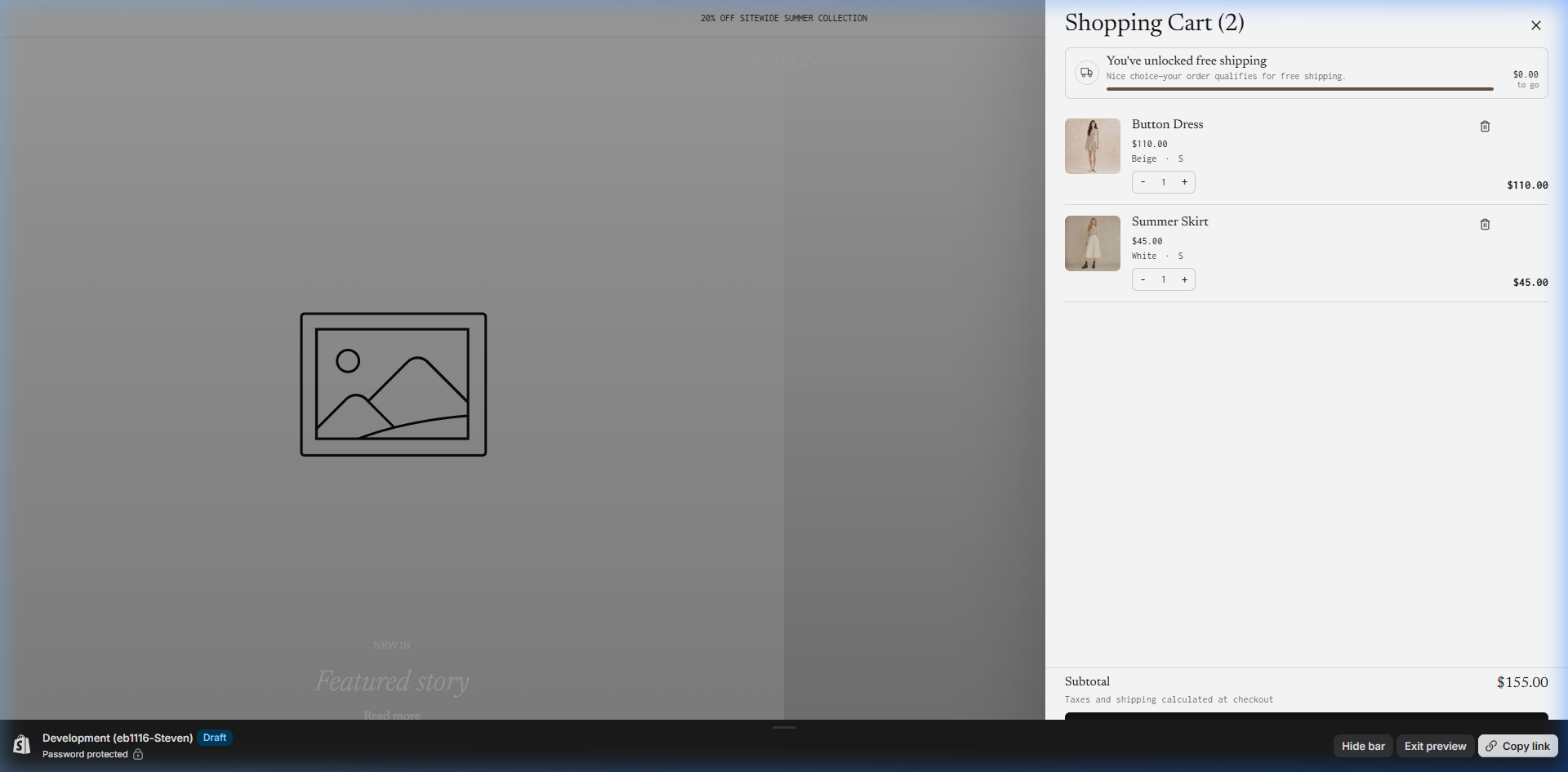
Use the cart drawer for most stores so customers can add and continue browsing. Test whether the drawer opens after quick add.
Test product exceptions
Test products with sold-out variants, only one available variant, selling plans, compare-at pricing, gift cards, and required option combinations.
Preview collection and homepage grids
Quick add appears in multiple contexts. Check collection grids, featured products, recommendations, and search results before launch.
Key Settings
| Setting | Location | Recommended | Notes |
|---|---|---|---|
| Quick add behavior | Theme settings > Product selling | Modal for variant products, direct for simple products | Direct add should not skip required choices. |
| Modal style | Theme settings > Product selling > Quick add modal | Bottom sheet for mobile-first stores | Horizontal split works well when product imagery should stay visible. |
| Enable cart drawer | Theme settings > Product selling > Cart | Enabled | Keeps shoppers in the browsing flow after adding. |
| Swatches | Product page options block and product card/grid settings | Enabled for color/material products | Improves modal clarity when option data is clean. |
| Sold-out handling | Product cards and badges | Show sold-out state and disable add | Do not let unavailable variants appear addable. |
| Grid overrides | Collection or product grid section | Use for special campaigns only | Keep default quick add behavior consistent across the store. |
Testing Checklist
- Single-variant product adds directly to cart.
- Multi-variant product asks for the required option before adding.
- Sold-out products cannot be added.
- Partially sold-out variant products only allow available combinations.
- Cart drawer opens or updates after quick add.
- Mobile quick add is easy to tap and does not cover important content.
- Products with subscriptions, gift cards, or custom app blocks still behave correctly.
Common Mistakes
- Using direct add on products with required size or color selection.
- Forgetting to test sold-out variant combinations.
- Hiding quick add behind hover-only behavior on mobile.
- Enabling quick add before product cards and cart drawer are configured.
- Treating quick add as a replacement for a detailed product page.
If a product requires personalization, subscription selection, gift card recipient fields, or another app-driven choice, send customers to the product page instead of forcing quick add.