Header

The most complex and customizable navigation component. Includes logo variants, mega menus, sticky behavior, transparent overlay, and dynamic color switching.

šŸ“ sections/header.liquidā±ļø 15 min setup

Overview

The header appears on every page and is critical for navigation and brand identity. It includes advanced features inspired by luxury brands like Gucci.

šŸŽØ

Logo Variants

Light & dark logos for any background
šŸ“‹

Mega Menus

Rich dropdowns with images
šŸ“Œ

Sticky Modes

Always, scroll-up, or never
✨

Dynamic Colors

Auto-switch on hero sections

The header supports:

  • Image or text logo with light/dark variants
  • Desktop navigation with dropdowns and megamenus
  • Mobile navigation with expandable accordion menus
  • Sticky behavior with multiple modes
  • Transparent overlay that floats over hero sections
  • Dynamic color switching (Gucci-style) that changes based on scroll position
  • Country/language selectors for international stores

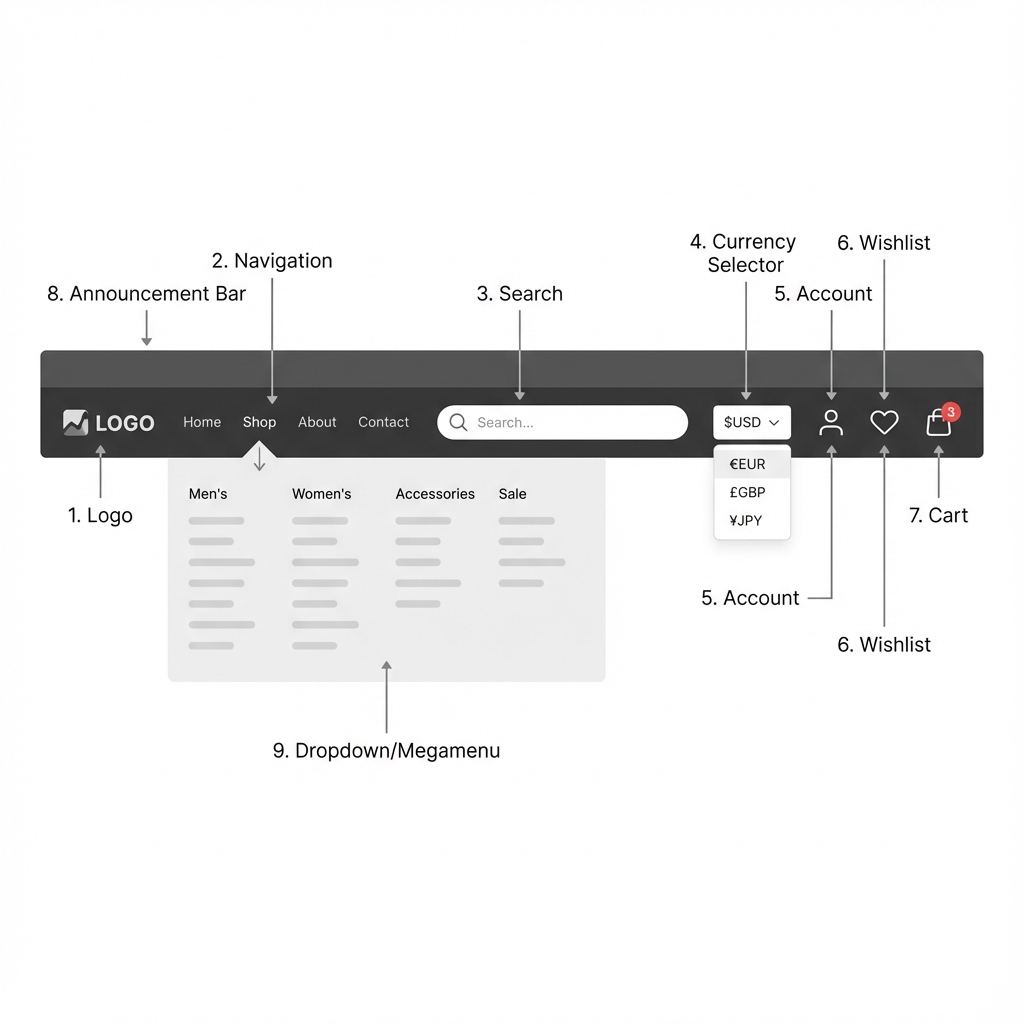
Header Anatomy

Header anatomy showing logo, navigation, search, icons, and announcement bar

Header components: Announcement bar, logo, navigation, search, and utility icons


Section Settings

Logo

SettingTypeDefaultDescription
Logoimage-Your main logo image. Recommended: SVG or PNG with transparency.
Mobile logoimage-Optional smaller logo for mobile. Falls back to main logo if not set.
Logo (light)image-Light/white version for overlay mode over dark backgrounds.
Mobile logo (light)image-Light version of mobile logo.
Widthrange150pxLogo width in pixels. Range: 50–400px.
Text logocheckboxtrueUse store name as text instead of an image logo.
Text sizerange20pxFont size for text logo. Range: 16–48px.
AlignmentselectLeftLogo position: Left, Center, or Right.

šŸ’” Logo Tips:
• Upload both dark and light logo versions for best results with overlay mode
• Use SVG format for crisp logos at any size
• Keep logo height under 60px for optimal header proportions

Sticky Behavior

SettingTypeDefaultDescription
ModeselectNoneHow the header behaves when scrolling.
Applies toselectDesktop onlyWhich devices get sticky behavior: All devices, Desktop only, Mobile only.

Sticky Mode Options:

Sticky Modes

None
Header scrolls normally with the page
On scroll up
Header hides when scrolling down, reappears when scrolling up

Visual Effects

These settings appear when sticky mode is enabled:

SettingTypeDefaultDescription
Float over herocheckboxfalseHeader sits transparently over hero sections, overlapping the content.
Fade-in background on scrollcheckboxfalseHeader starts transparent and fades to solid as you scroll (Gucci-style effect).
Glass effectselectFullFrosted glass blur effect when sticky. Options: None, Subtle, Full.
Shadow when stickycheckboxtrueAdd a subtle shadow when the header becomes sticky.
Shadow strengthselectLightIntensity of the sticky shadow: None, Light, Medium.
Solid background when stickycheckboxtrueUse a solid background color instead of transparency when sticky.

Spacing

SettingTypeDefaultDescription
Padding reduction when stickyrange8pxReduce header padding when it becomes sticky, making it more compact. Range: 0–20px.
Z-indexrange100Stack order of the header. Higher values appear above other elements. Range: 50–500.

Localization

SettingTypeDefaultDescription
Country/region selectorcheckboxfalseShow a country flag and currency selector in the header.
Language selectorcheckboxfalseShow a language dropdown for multilingual stores.

Fallback Navigation

SettingTypeDefaultDescription
Menulink_listmain-menuDefault menu used when no navigation blocks are added.

Block Types

Simple Link

A navigation item that can be a single link or a dropdown menu.

SettingTypeDefaultDescription
Menulink_listmain-menuSelect a menu. If it has one link, it displays as a single item. Multiple links create a dropdown.

Megamenu

A full-width dropdown with multiple columns and an optional promotional image.

SettingTypeDefaultDescription
TitletextShopThe navigation item label that triggers the megamenu.
Column 1link_list-First column of links.
Column 2link_list-Second column of links.
Column 3link_list-Third column of links.
Promo Imageimage-Optional promotional image on the right side of the megamenu.
Promo Headingtext-Title for the promotional area.
Promo Linkurl-Link for the promotional image and heading.

Understanding Overlay Mode

When Float over hero is enabled, the header sits on top of the first section (usually a hero banner). This creates a sophisticated, edge-to-edge look.

How It Works

  1. Without scrolling — Header is transparent with light (white) text/icons
  2. When scrolling — Header gains a solid background with dark text/icons
  3. Light logo is shown over hero, dark logo when scrolled

Requirements for Overlay Mode

  • Upload both Logo and Logo (light) images
  • The first section should be a full-width hero or slideshow
  • Enable Float over hero in header settings
  • Optionally enable Fade-in background on scroll for smooth transitions

Best Practices

Navigation Structure

  1. Keep it simple — 5-7 main navigation items is ideal
  2. Use megamenus sparingly — One or two at most
  3. Group logically — Dropdown menus should contain related items
  4. Test on mobile — Ensure the mobile menu is navigable

Performance

  1. Optimize logo images — Use SVG or compressed PNG
  2. Limit megamenu columns — More columns = more complexity
  3. Consider disabling glass effect — On lower-end devices

Accessibility

  • Header includes proper ARIA attributes
  • Mobile menu has focus trapping
  • Skip links are included for keyboard navigation
  • Color contrast is maintained in both light and dark states

Troubleshooting

Logo not switching when scrolling

  • Ensure both Logo and Logo (light) are uploaded
  • Verify Float over hero is enabled
  • Check that the first section is a hero or full-width section

Header overlapping content incorrectly

  • Adjust the Z-index setting
  • Check if other sections have conflicting z-index values
  • Ensure Float over hero is set correctly

Mobile menu not opening

  • Check for JavaScript errors in browser console
  • Verify the menu has links configured
  • Test in different browsers

Country selector not showing

  • Enable Country/region selector in settings
  • Add multiple countries in Shopify admin → Settings → Markets
  • Country selector only appears when multiple countries are configured