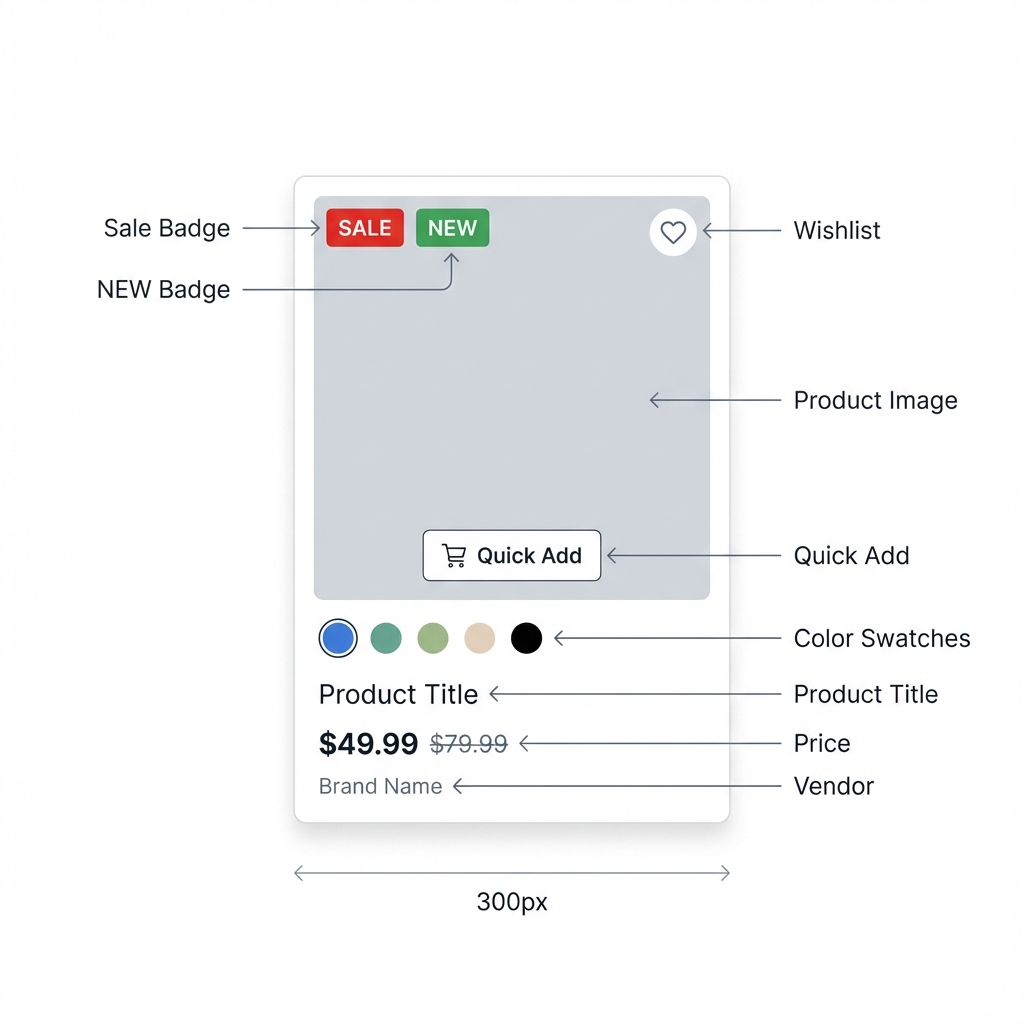
Product merchandising sections should reduce the distance between interest and purchase. The important settings are not only layout controls; they decide whether customers can compare products, select variants, add to cart, or understand why a product is featured.
Product merchandising depends on card media, quick add, swatches, price, badges, and gallery behavior working together.
Card settings affect collection grids, featured product grids, recommendations, and search results.
Quick add should match the product's variant complexity.
Swatches need consistent product option names and variant data.
Key Settings To Decide First
Theme editor setting
product source / collection source
What this controls
The product set a section uses, either from a Shopify collection or manual picks.
When to change it
A section pulls products automatically.
Recommended setup
Use a collection for scalable product sets; use manual products for curated edits.
Watch out
Using manual products everywhere and then expecting collection sorting to apply.
Theme editor setting
products_to_show / product count
What this controls
How many product cards appear before the section ends or paginates.
When to change it
The section feels too long or too sparse.
Recommended setup
3 to 6 for curated homepage edits; 8 to 12 for broader browsing sections.
Watch out
Showing too many products before customers understand the page's main path.
Theme editor setting
quick add behavior
What this controls
The action customers use to add products from cards without opening the product page.
When to change it
Customers can add products from cards.
Recommended setup
Direct add for simple products, modal for variant-heavy products.
Watch out
Direct add when customers must choose size, color, material, or subscription.
Theme editor setting
card gallery / hover image
What this controls
Extra product imagery shown from a product card through hover, arrows, dots, or gallery controls.
When to change it
Customers need to inspect more than one product image from a card.
Recommended setup
Enable for visual products with consistent media order.
Watch out
Using card galleries when product media is inconsistent or low quality.
Theme editor setting
swatches
What this controls
Small color, material, or option indicators shown on product cards.
When to change it
Products have color, material, or finish variants.
Recommended setup
Show swatches below the card for mobile clarity.
Watch out
Expecting swatches to work when option names vary across products.
Theme editor setting
custom image / image mask
What this controls
Art-directed image overrides and crop shapes used in featured product cards.
When to change it
Featured product grid needs art direction beyond product media.
Recommended setup
Use custom images for campaign edits and masks sparingly.
Watch out
Using decorative masks that hide product detail.
Theme editor setting
carousel / slideshow controls
What this controls
Navigation controls that let customers move through product cards or slides.
When to change it
The section contains more products than fit comfortably.
Recommended setup
Use visible arrows/dots and keep product details readable.
Watch out
Hiding controls or auto-rotating products too quickly.
Theme editor setting
animation timing / trigger mode
What this controls
The pace and start condition for motion-led merchandising sections.
When to change it
Using Card reveal or other motion-led merchandising.
Recommended setup
Use restrained timing and test mobile scroll pacing.
Watch out
Making the shopping path depend on a long animation.
Recommended Merchant Setups
Setting
Location
Recommended
Notes
Homepage shopping edit
Featured product grid
3 to 6 products, below-card swatches, quick add modal for variants
Use this before long editorial sections so customers see products early.
Single product launch block
Featured product or Product promo
One product, clear offer, primary CTA, concise supporting copy
Use Featured product when customers can buy in-section; use Product promo when click-through is better.
Lifestyle selling
Shop the look
One clear image with obvious products and hotspots
Hotspots should identify products customers can actually buy.
Proof-based merchandising
Best sellers or Best sellers slideshow
Real best-seller collection, readable names/prices, clear controls
Do not label products as best sellers unless the set is credible.
Motion-led product moment
Card reveal
One page moment, short section, nearby static product path
Use for brand impact, not as the only way to browse products.
Common mistakes
Using direct quick add for products with required variant choices.
Showing too many products in a curated section, making it feel like a catalog.
Using custom art-directed images that no longer match the actual product page media.
Adding card reveal or carousel behavior without obvious controls.
Hiding core buying information such as price, stock, size, or variant choices behind decorative layouts.